HOW TO USE YOUR IPHONE
Turn on your device
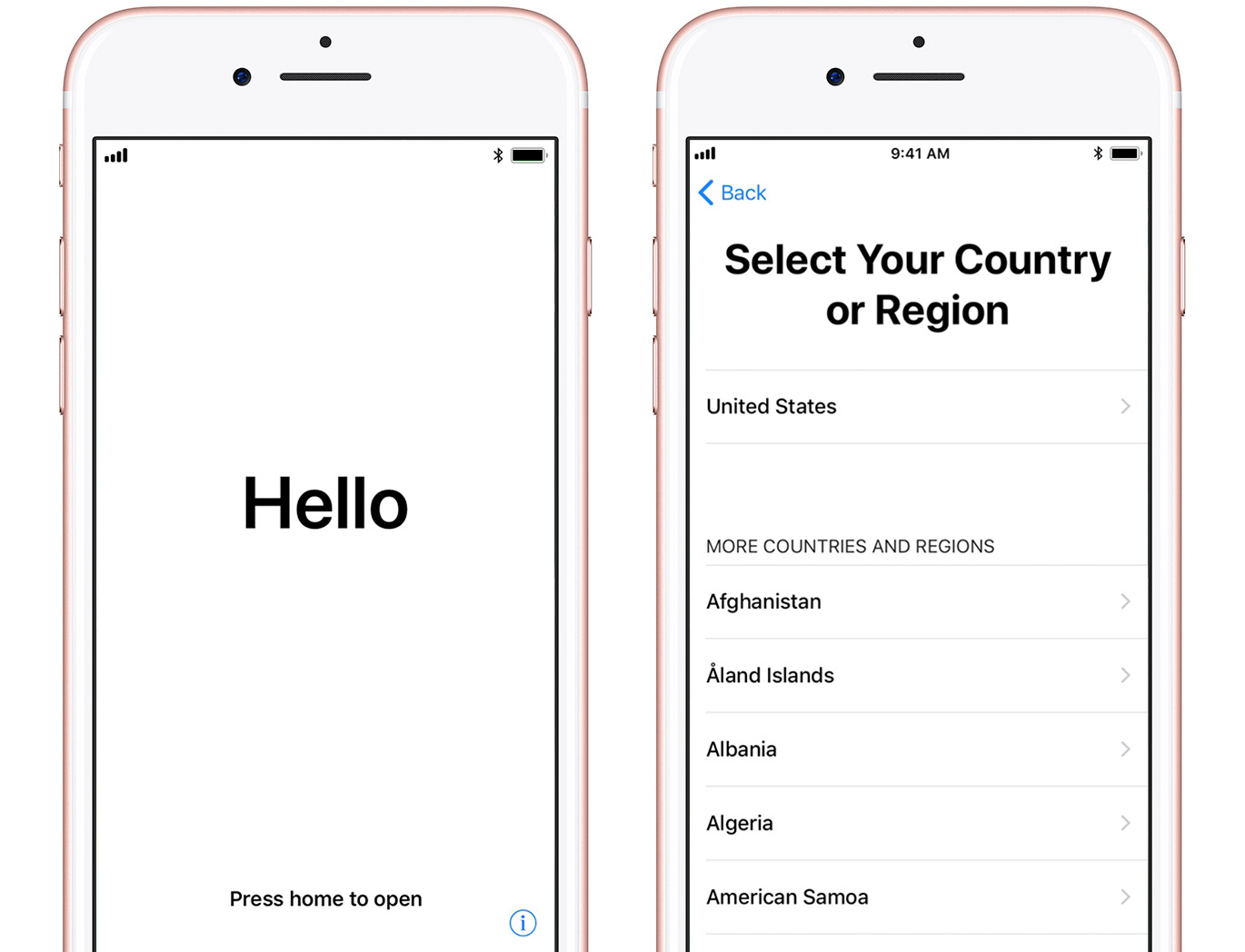
You'll see "Hello" in many languages. Press the Home button to unlock your device and begin setup. If you're blind or have low vision, you can turn on VoiceOver or Zoom from the Hello screen.
When asked, choose your language. Then tap your country or region. This affects how information looks on your device, including date, time, contacts, and more.
If you have another device on iOS 11, use Quick Start
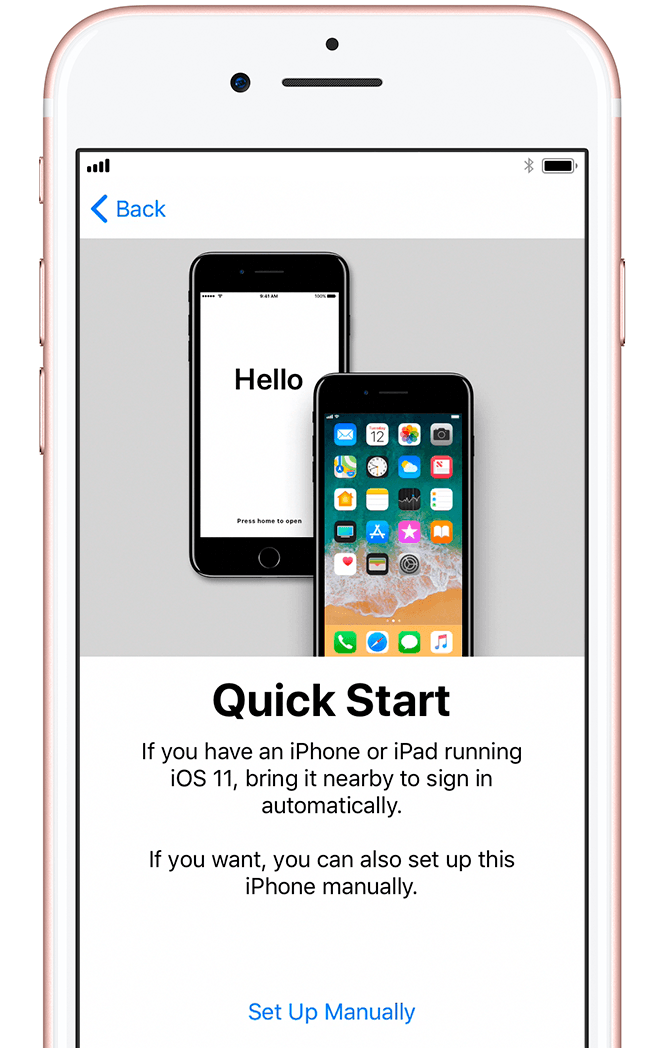
If you have another device that's running iOS 11, you can use it to automatically set up your new device with Quick Start. Bring the two devices close together, and then follow the instructions.
If you don’t have another iOS 11 device, tap Set Up Manually to continue.
Activate your device
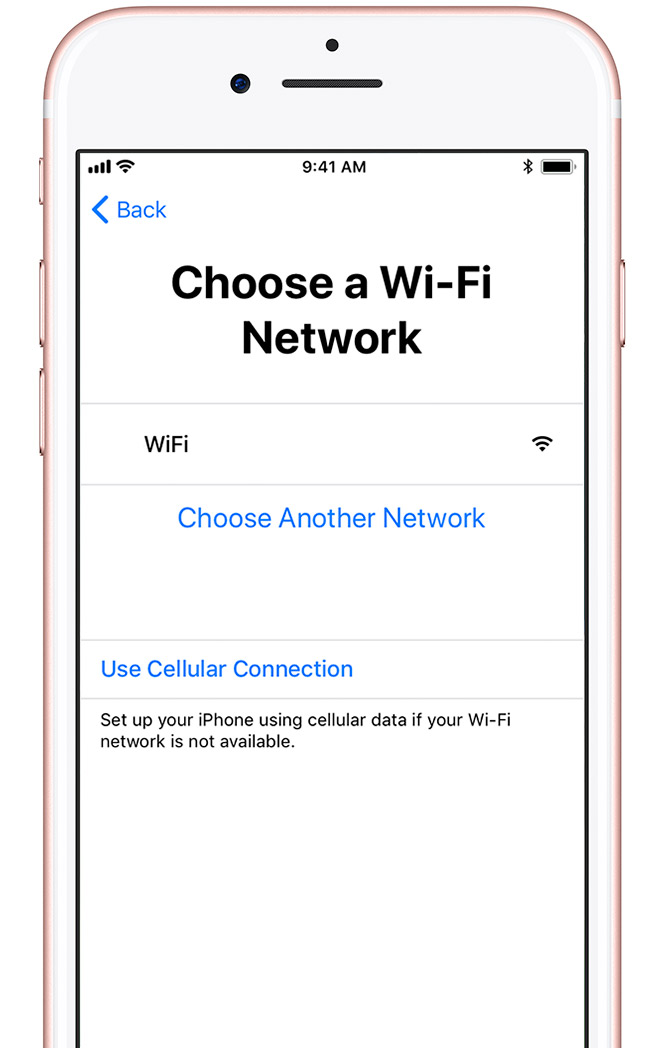
You need to connect to a Wi-Fi network, a cellular network, or iTunes to activate and continue setting up your device.
Tap the Wi-Fi network that you want to use or select a different option. If you're setting up an iPhone or iPad (Wi-Fi + Cellular), you might need to insert your SIM card first.
Get help if you can't connect to Wi-Fi or if you can't activate your iPhone.
Set up Touch ID and create a passcode
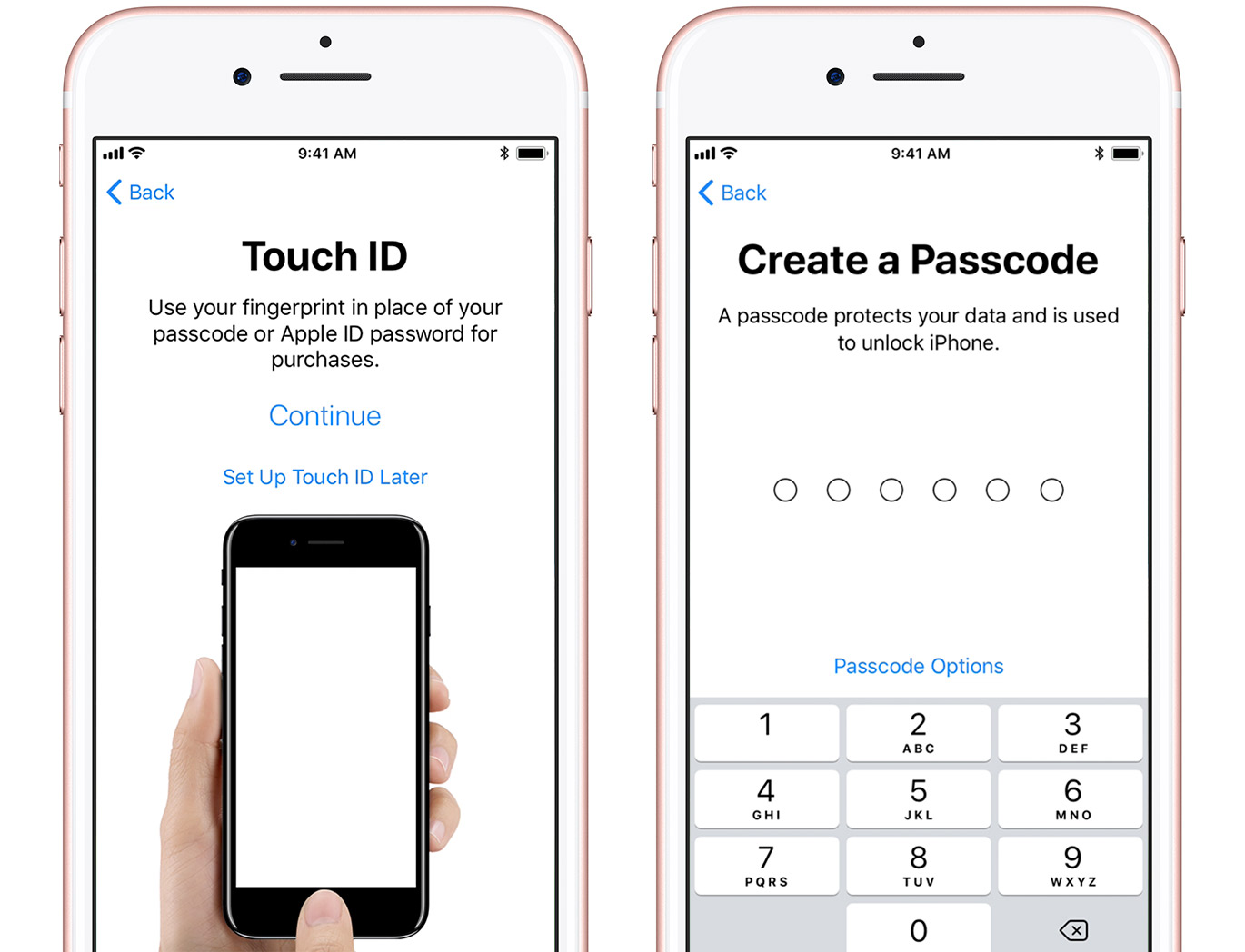
On some devices, you can set up Touch ID. With this feature, you can use your fingerprint to unlock your device and make purchases. Tap Continue and follow the instructions, or tap Set Up Touch ID Later.
Next, set a six-digit passcode to help protect your data. You need a passcode to use features like Touch ID and Apple Pay. If you'd like a four-digit passcode, custom passcode, or no passcode, tap Passcode Options.
Restore or transfer your information and data
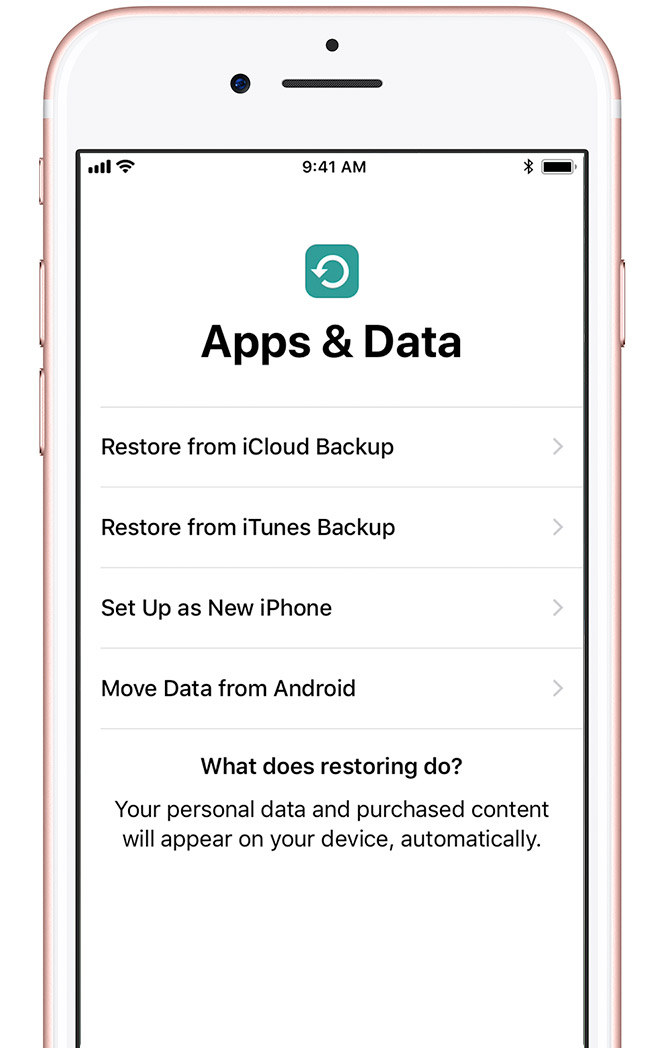
If you have an iCloud or iTunes backup, or an Android device, you can restore or transfer your data from your old device to your new device.
If you don't have a backup or another device, select Set Up as New [Device].
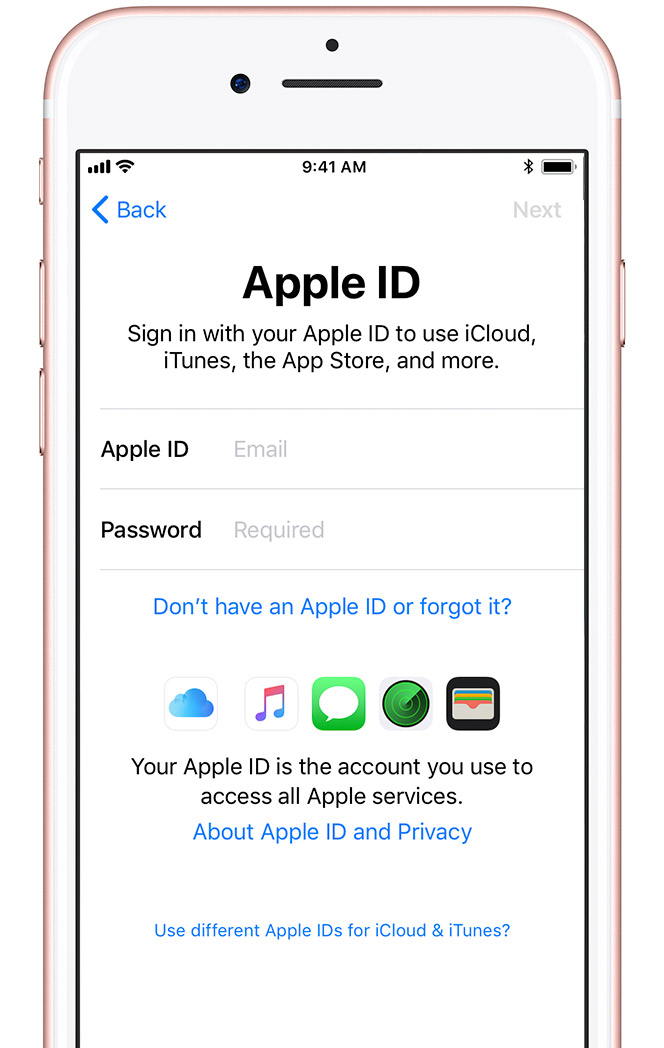
Sign in with your Apple ID
Enter your Apple ID and password, or tap "Don't have an Apple ID or forgot it." From there, you can recover your Apple ID or password, create an Apple ID, or set it up later. If you use more than one Apple ID, tap "Use different Apple IDs for iCloud and iTunes."
Next, accept the iOS Terms and Conditions and turn on Location Services, a feature you need for apps like Maps and Find My Friends.
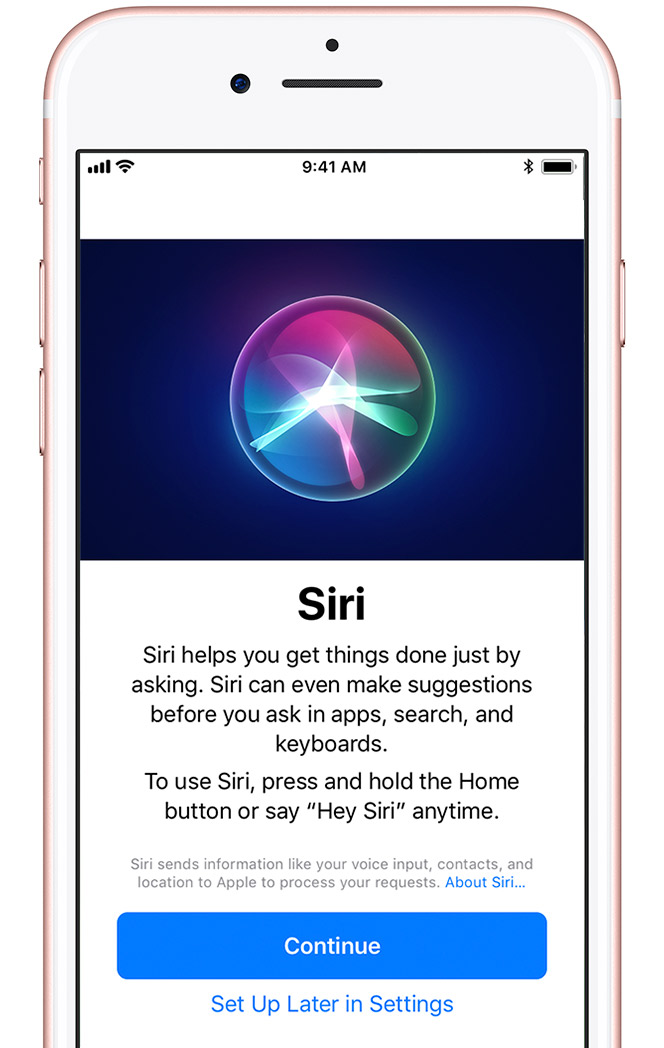
Set up Siri
Choose whether to use Siri. On some devices, you'll be asked to speak some phrases so that Siri can get to know your voice.
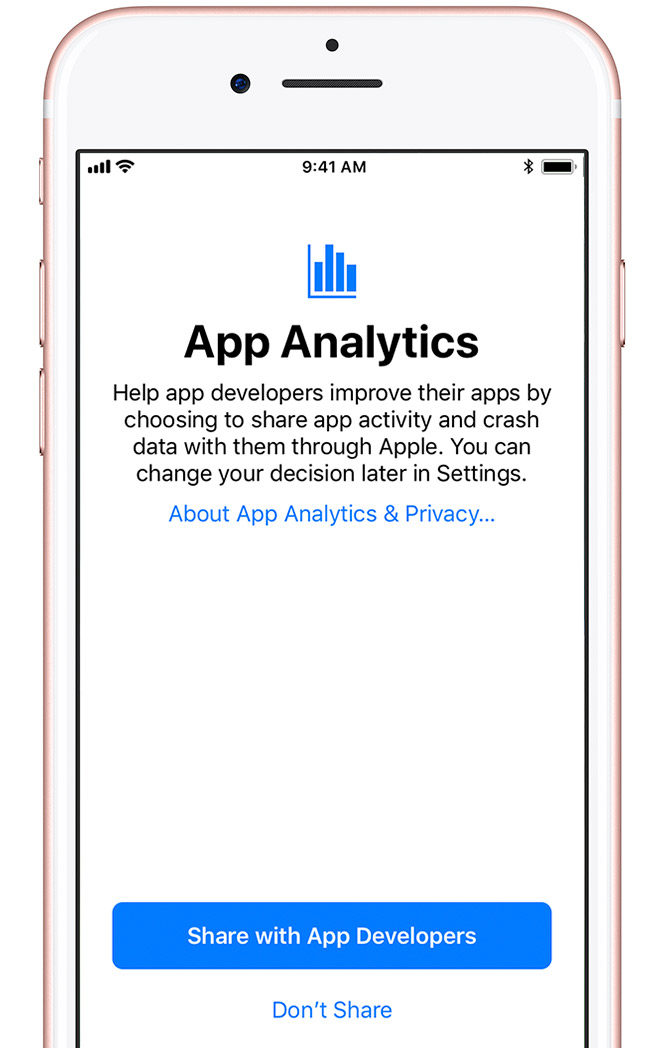
Choose settings for app analytics, True Tone, and home button
Decide whether to share information with app developers.
Next, turn on True Tone display if your iPhone or iPad supports it. True Tone adjusts the color and intensity of your display to make images appear more natural.
If you have an iPhone 7, iPhone 7 Plus, iPhone 8, or iPhone 8 Plus, you can then adjust your home button's click. Tap an option, then press the Home button to give it a try. To set the one you like best, tap Next.
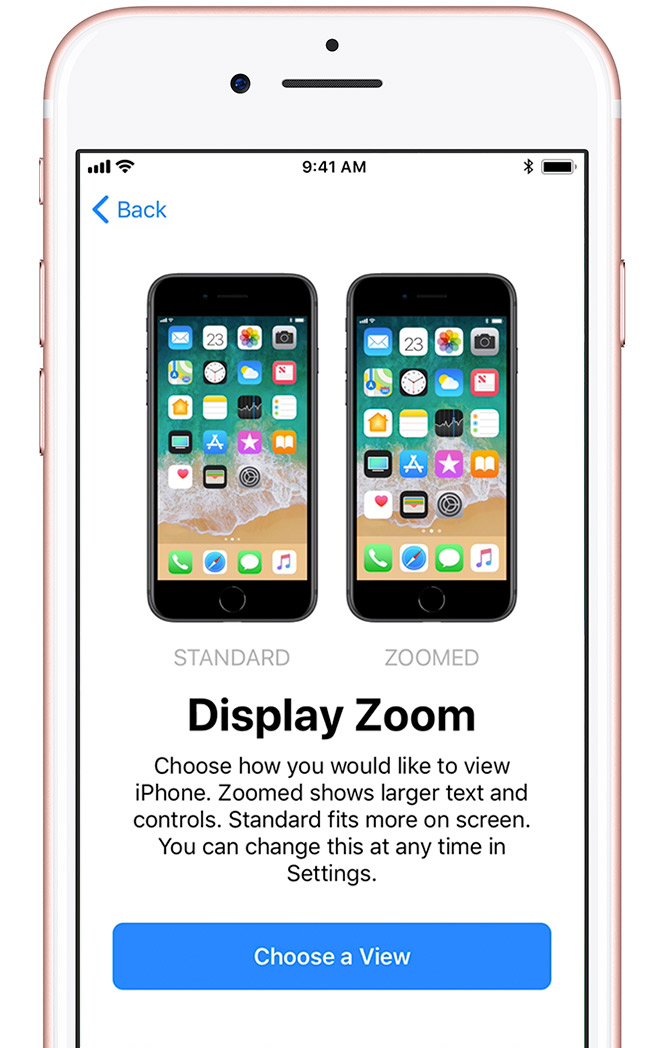
Choose a display resolution
If you have an iPhone 6 or later, choose between two display resolutions: Standard shows more on your screen, while Zoomed uses larger text and controls. Tap Next to continue.

Comments
Post a Comment